OriginGame Arcade
Download once, play with the network unplugged
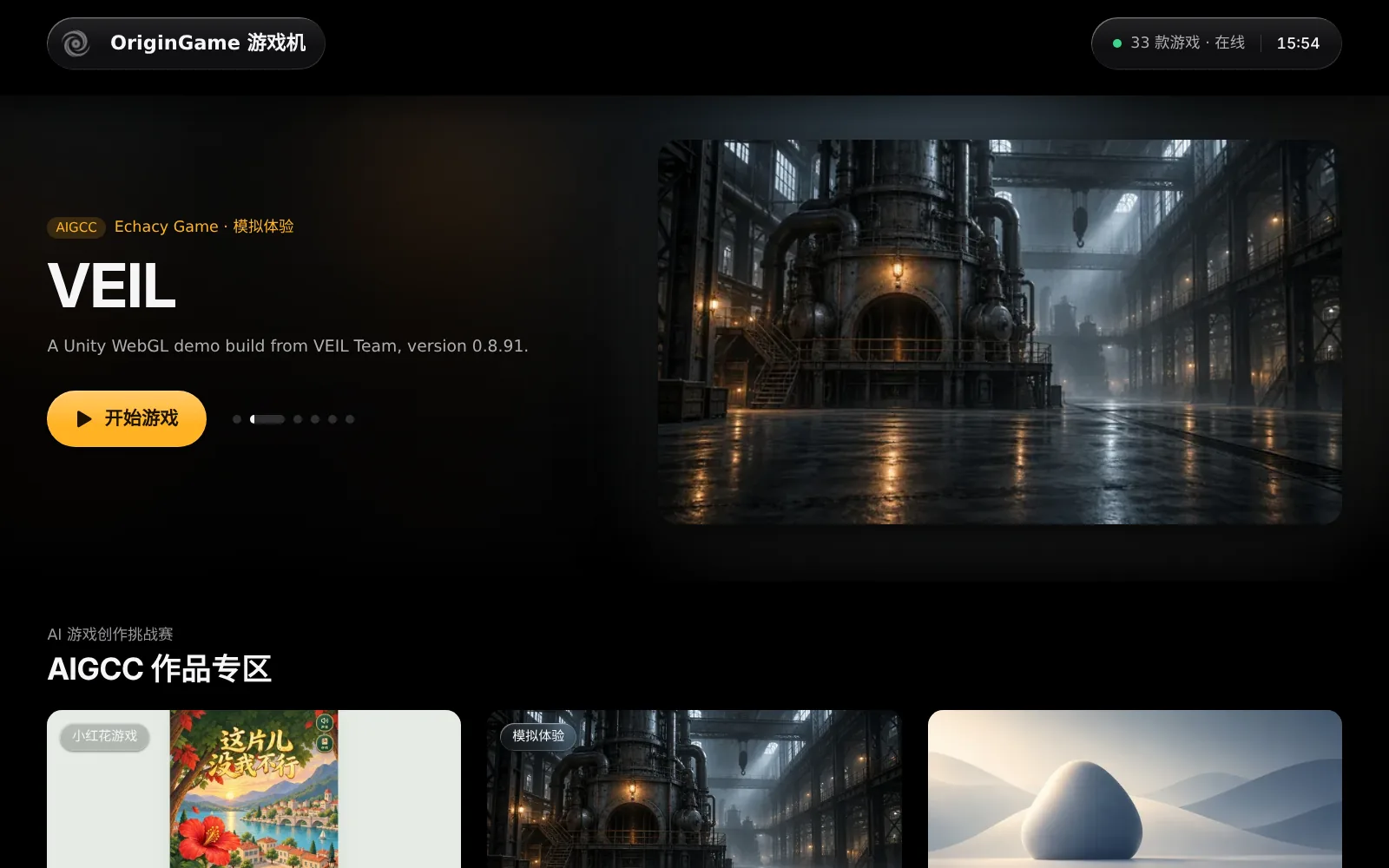
A Windows game console for event floors and booths: no installation, just unzip and run. Download OriginGame games into the program folder while online, copy the whole folder to PCs with no network, and run locked in full screen and fully offline.
Download
Version 0.3.0 · Released 2026-10-19
Windows only for now (Windows 10 1803 or later).
Set up a booth in six steps
 01
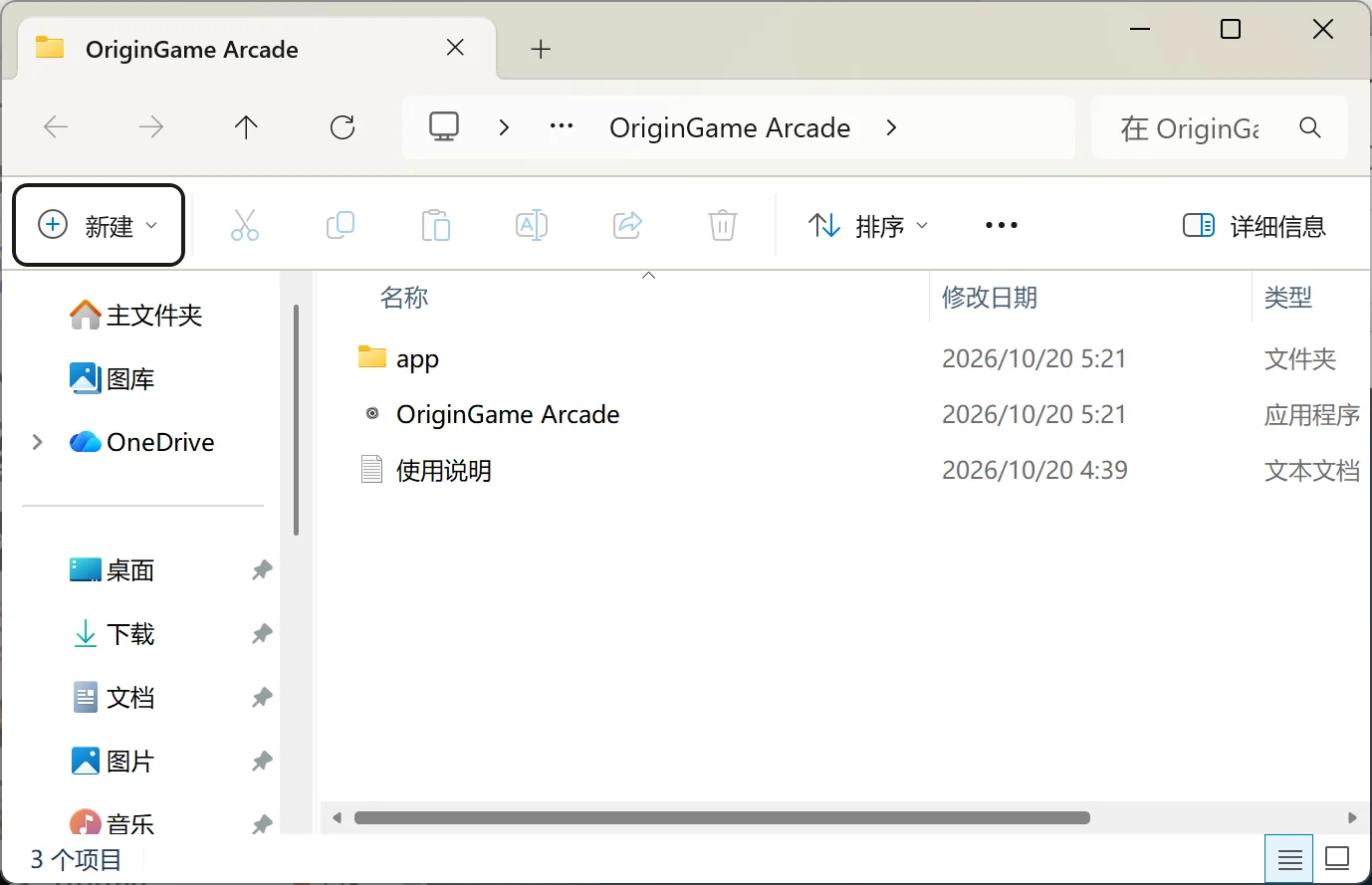
01Unzip and run
Unzip to the desktop or drive D:, open the OriginGame Arcade folder and double-click OriginGame Arcade.exe: no installation and no administrator rights. Do not run it from inside the zip or from C:\Program Files.
 02
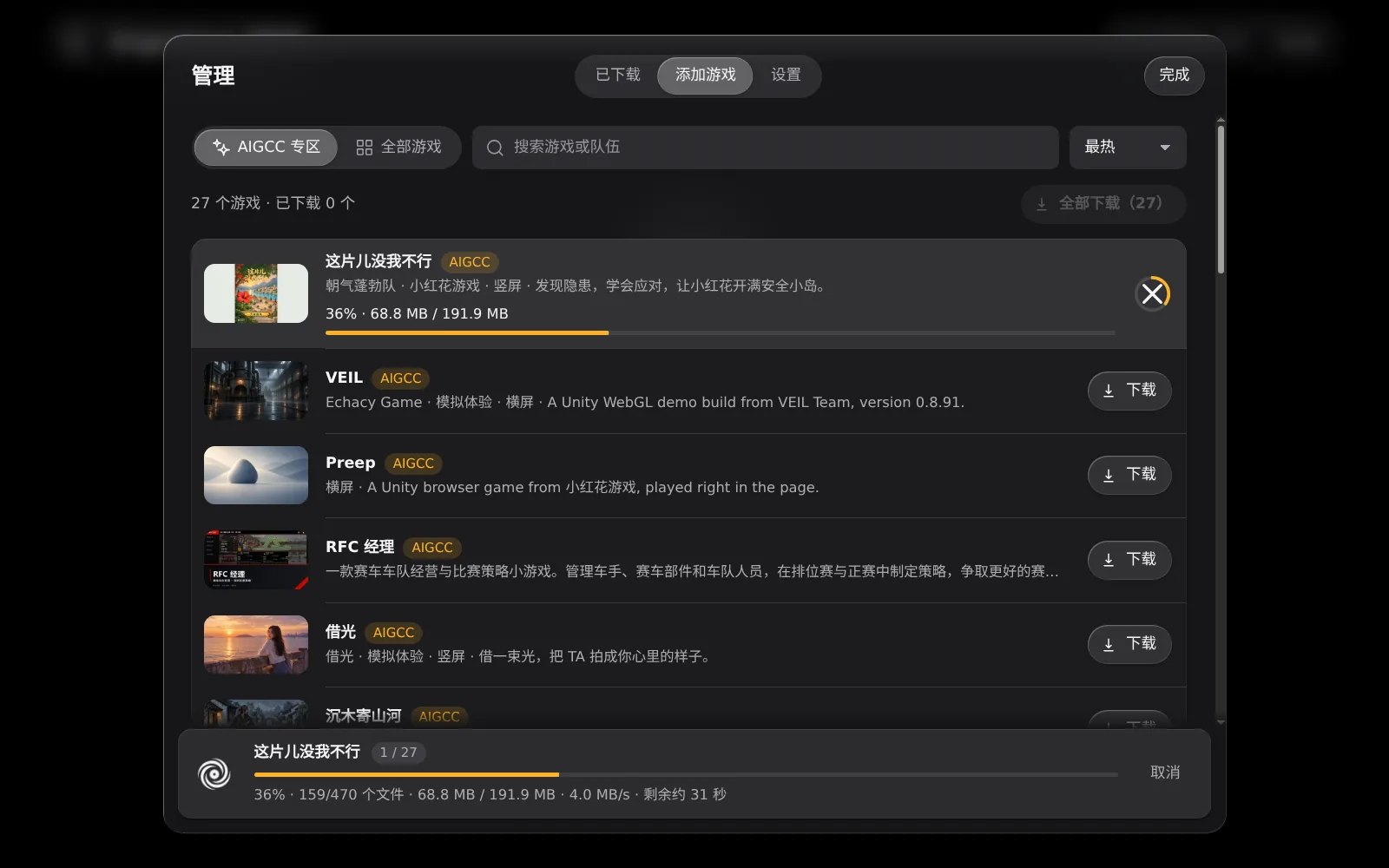
02Download games while online
On first start, click Add games and download the AIGCC zone or every game in one go, with progress, speed and time left. Games are stored in the library folder inside the program folder.
 03
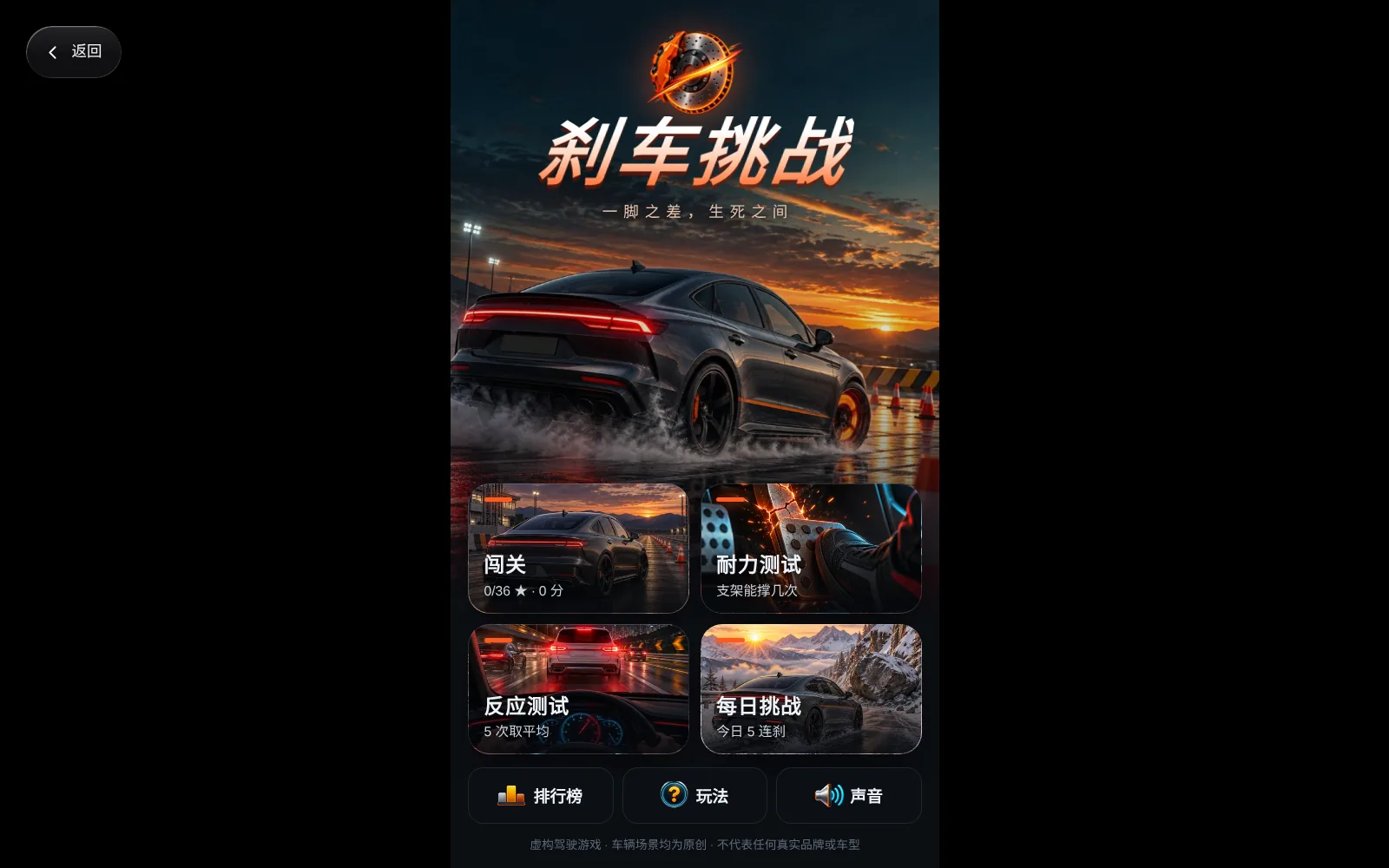
03Play offline
Unplug the network and restart: the library still shows every game. Visitors tap a card to play; the game runs full screen and stays open when idle. 返回 (Back) at the top left, or Esc, opens a pause menu: resume, restart or back to the library. Saves and leaderboards stay on the machine.
 04
04Booth mode
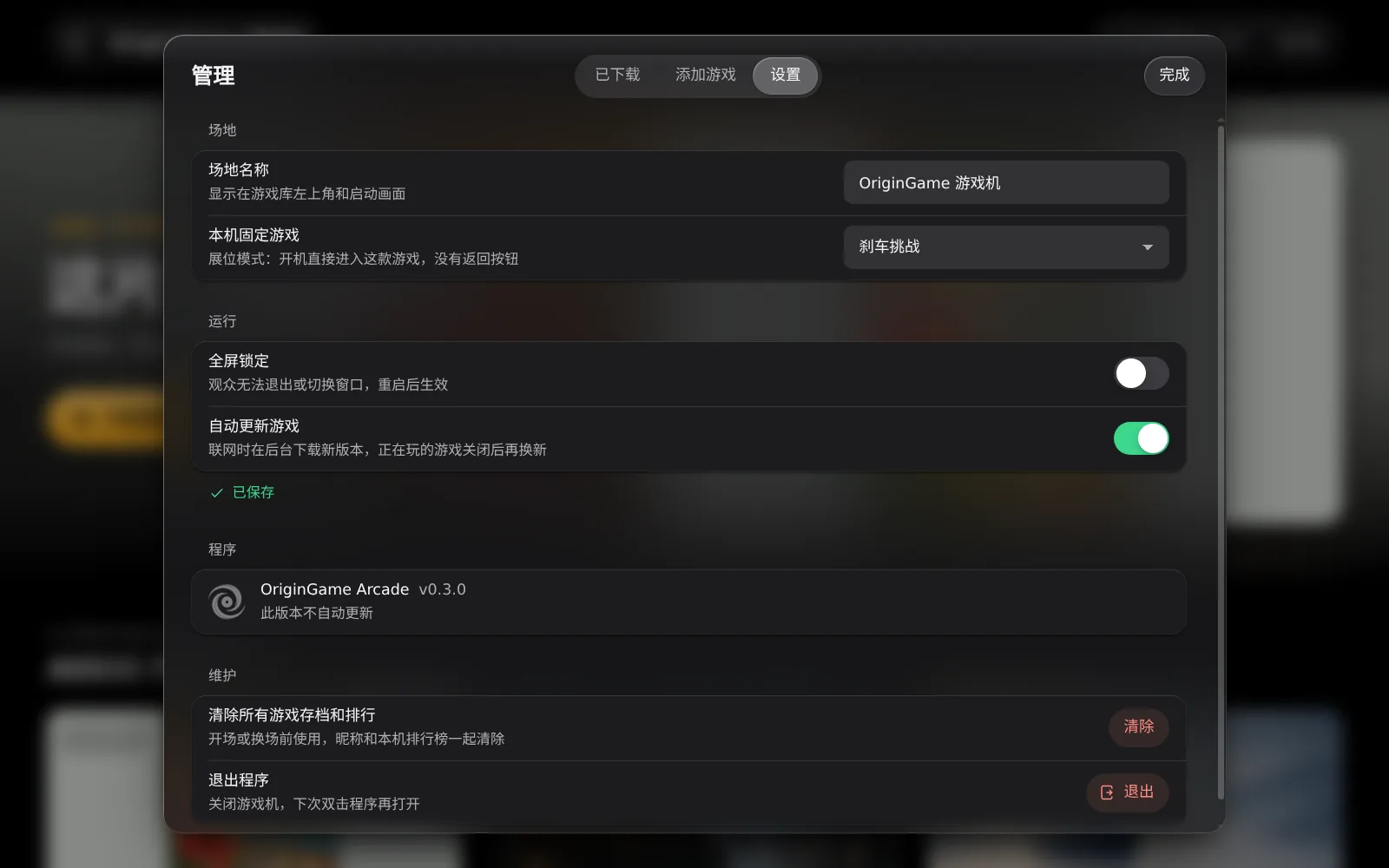
Pick a pinned game in Settings: the machine opens straight into it with no back button. The same page sets the venue name and full-screen lock.
 05
05Manage and update
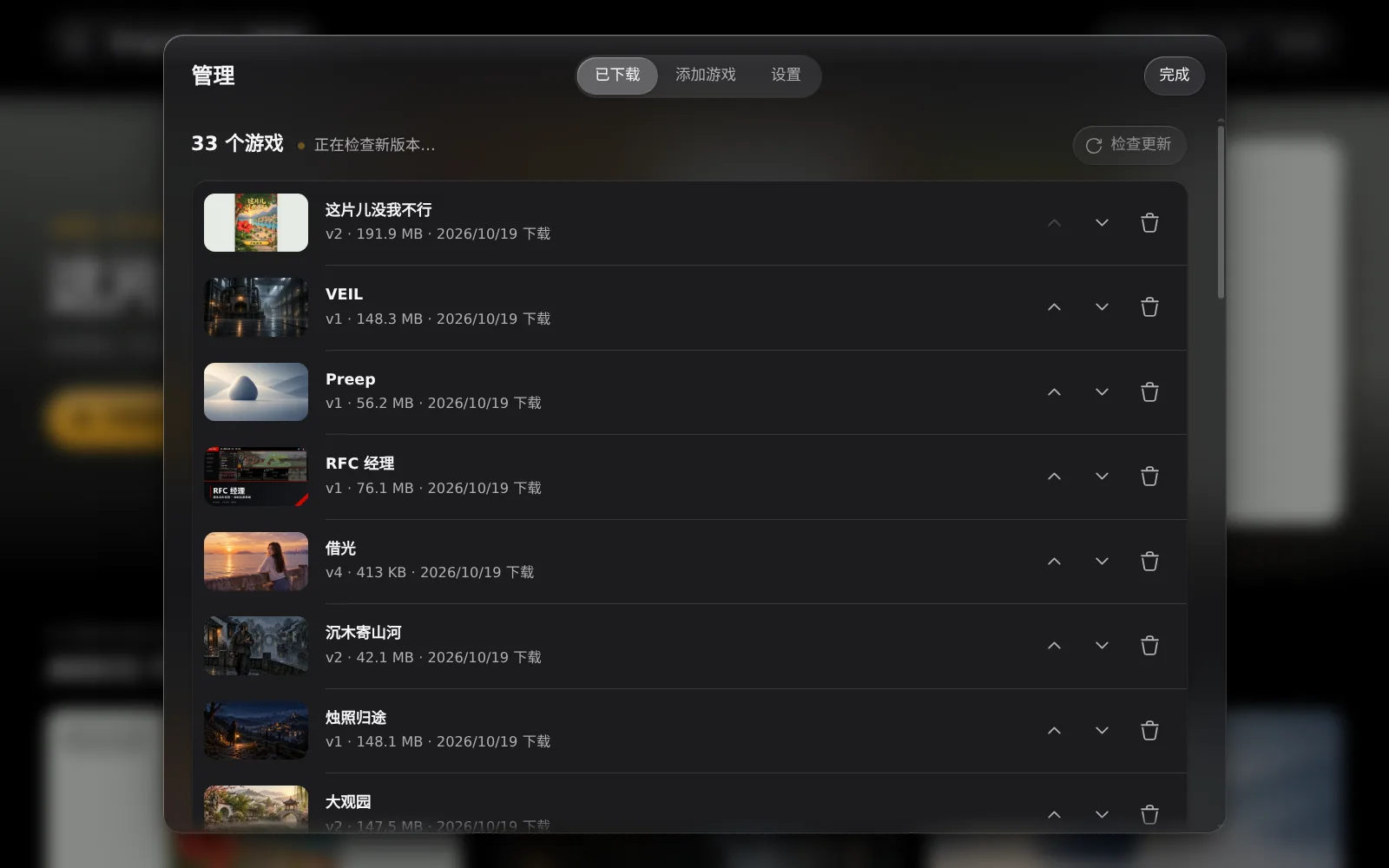
The library shows no management control, so visitors cannot leave; staff press Ctrl+Shift+A or hold the top-left mark for 3 seconds, with no PIN. While online, games and the app update to new versions on their own; a game being played switches once it closes. App updates replace only the program files, never library or data.
 06
06Take the whole folder
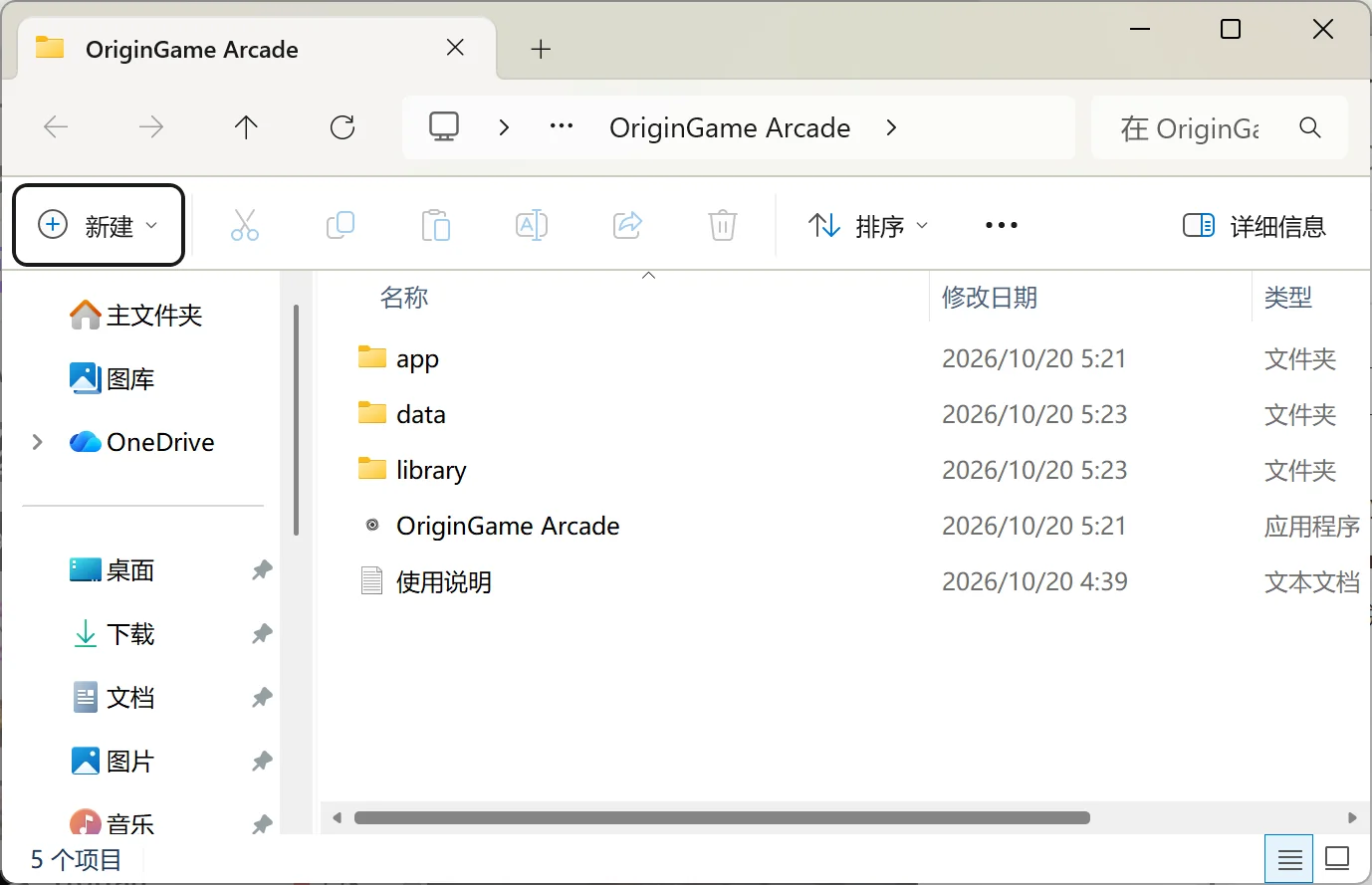
Games, saves and settings all live in this folder: library holds the downloaded games, data the saves and settings. Prepare the games on one online PC, quit the app, zip the folder and copy it to other PCs; unzip and double-click the exe to play with no network.
Before the event
- The day before, leave the machine online for a few minutes so games and the app update; confirm Downloaded shows no new versions.
- Quit the app before copying the folder (Manage › Settings › Quit) so downloads and saves are fully written.
- Before opening or between sessions, use Clear all saves and rankings in Settings.
- The app is not yet signed: when SmartScreen appears on first run, click More info › Run anyway.